Introduction
WARNING Deleting a project will remove all groups/sub-groups and associated wells.
The user can delete a project by two (2) methods
-
Delete a project using Main Menu
-
Delete a project using the project settings.
Option 1: Delete a Project using the Main Menu
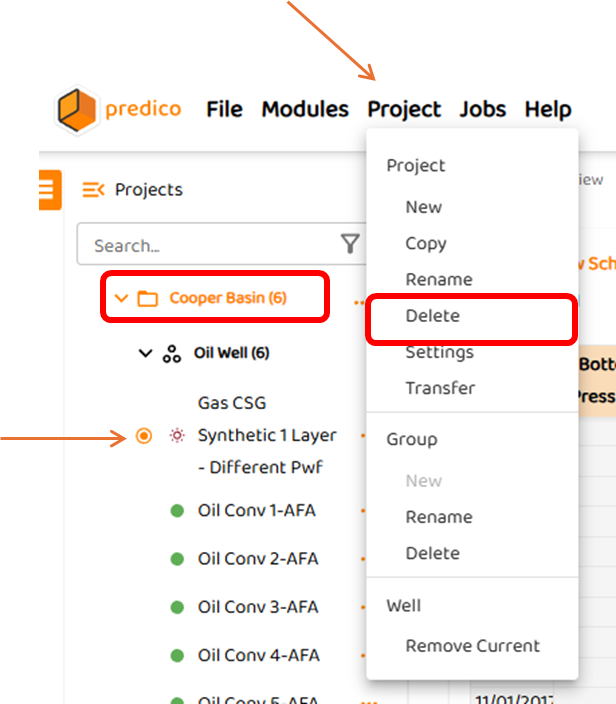
To delete the current active project (In this example, “Cooper Basin“ is the active project since the user is viewing Well “Synthetic 1 Layer - Different Pwf”, simply:
-
Select Project from Main Menu
-
Click “Delete”
-
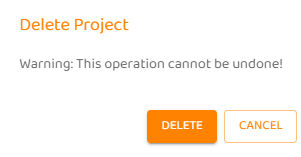
Either Click “Delete” or “Cancel” when the warning comes up.
Option 2: Delete Project using Project Settings.
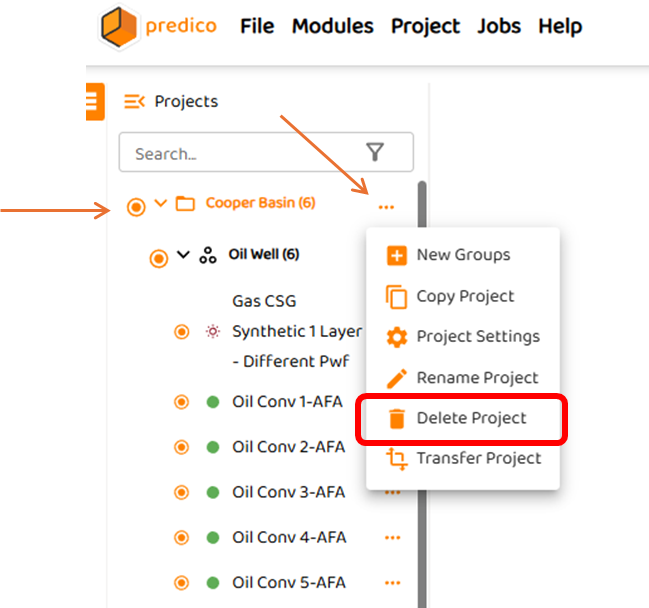
If a project already exists, the user can delete the entire project by simply clicking the three dots ( 
In this example, the user will delete Project “Cooper Basin: by:
-
Hovering the mouse of the project, and clicking the circle to select the project.
-
Clicking the three dots (
-
Either Click “Delete” or “Cancel” when the warning comes up.