
The Interactive Well Map feature allows you to view and explore your wells on a dynamic, interactive map. Each well is displayed with key spatial and attributes.
Key Features in This Release - 2.8.0
-
Well Location – View wells positioned by latitude and longitude.
-
Toe Position – See the precise location of the well’s toe (end point).
-
Lateral Length – Display the total drilled length of each well.
-
Azimuth – Understand the directional heading of the wellbore.
Using the Interactive Map
Demo dataset
The Demo Dataset comes with spatial details.
-
Explore Wells – Click on the individual well or the project/group. If the well(s) has coordinate information, then the View on Map option will appear otherwise it will be dimmed.
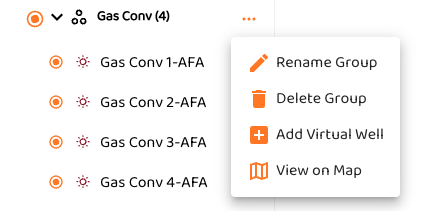
The map will appear on the right.
If you clicked on a single well, tit will appear in the centered in the view
If you clicked on a group of wells it will show all the highlighted wells
-
Pan & Zoom – Use your mouse or touch gestures to navigate the map.
Adding Spatial Data
When a well does not have spatial data, such as a virtual well, you can select the three dots (…) next to the well.
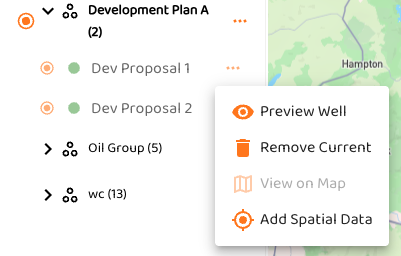
-
Clicking on Add Spatial Data will bring up the map and the following dialog box. Pan and scroll the map and click the location on the map to place the Latitude and Longitude.
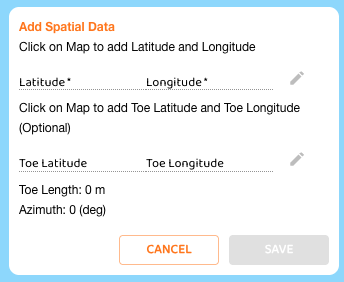
If you don’t want to add the Toe location, just hit Save. You can edit the selected Lat, Long by clicking on the pen.
-
Clicking on the Map again with add the Toe Lat, Long and it will automatically calculation the Lateral Length and Azimuth.
-
Now, click of Save to update the Well data.