Introduction
Group Run allows users to perform analyses on multiple wells simultaneously. This feature is particularly useful when user wishes to run one or more modules across several wells at the same time. Group Run leverages the Job Queue technology to schedule, manage, and execute these multi-well analyses efficiently and consistently.
RULON Group Run is enabled for the following modules:
SPAD Modules which include decline and WOR analysis.
GAZ Modules which include autoRTA, autoFMB, and more for gas wells
MASLO autoRTA which include autoRTA, autoFMB and more for oil wells
TAHK: Coal Seam Gas (PSS) Forecast used for multiphase CSG forecasting
KOLDUN: CSG Monte-Carlo which include CSG Monte-Carlo simulation
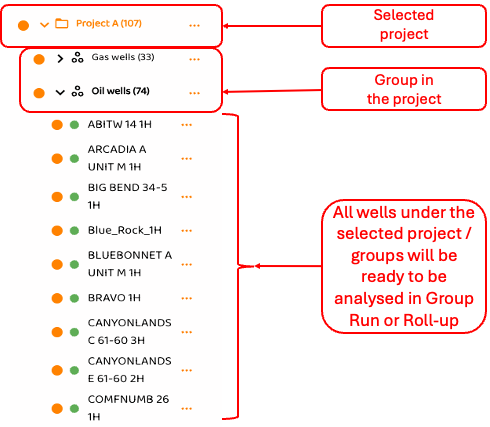
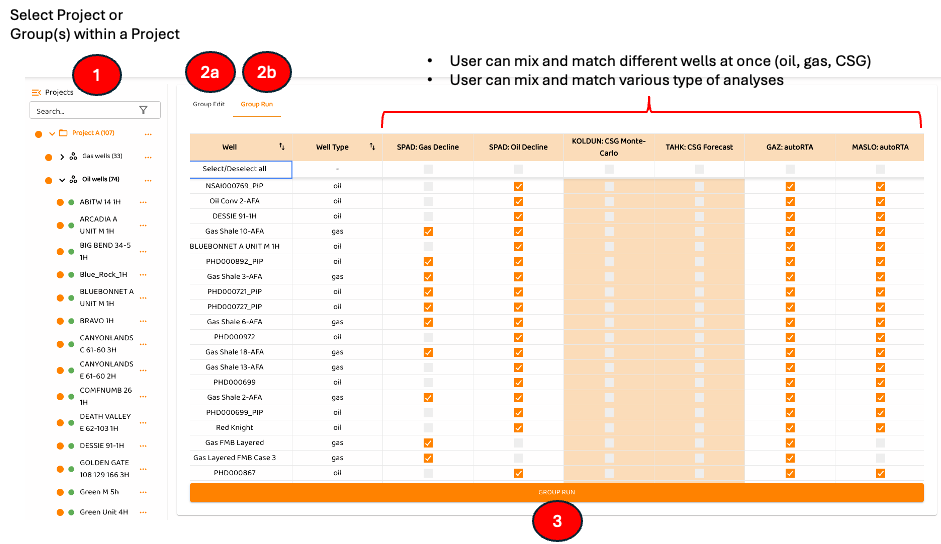
To access the RULON Group Run module, the user must select either an entire project or one or more groups within the project, as example in figure below.
How Group Run Works
Once a group or project is selected, the user may click the GROUP RUN module
STEP 1: Select Group Run
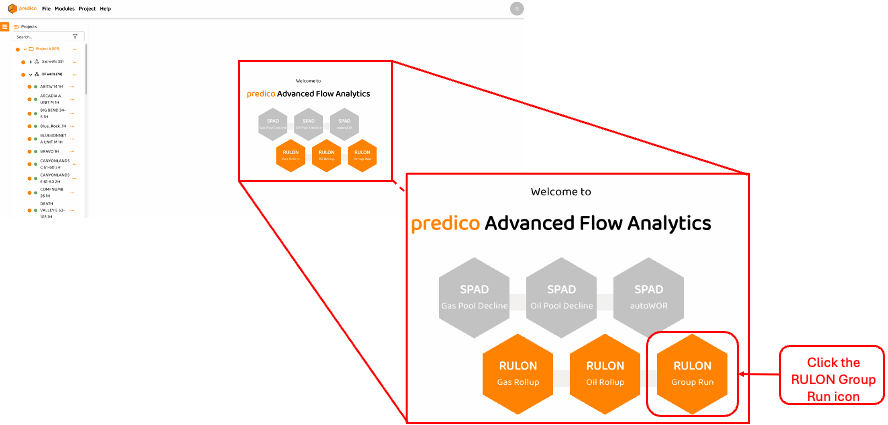
Select the RULON Group Run icon as shown in the figure below.
STEP 2: Review the Group Run Tables (Options).
After click the RULON Group Run icon, the user will see two options: Group Edit and Group Run.
2a. Group Edit
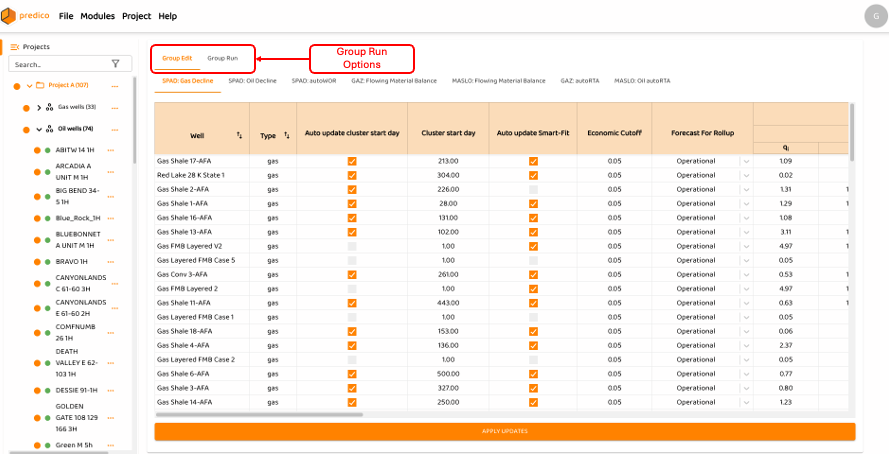
In Group Edit, users can bulk-edit the input parameters for each module and for each well selected for calculation within Group Run. The figures below illustrate the Group Edit interface. It is important to note that Group Edit currently supports input editing for the following modules:: SPAD Modules, GAZ Modules, and MASLO autoRTA.
Figure below shows a zoom of the options of Group Run Module.

An overview of the Group Edit functionality is shown in the figure below, where SPAD Gas Decline is selected as the active module.
After updating the module inputs, the user must click the orange APPLY UPDATES button at the bottom of the interface to save the changes. It is important to note that APPLY UPDATES must be clicked before switching to a different module; otherwise, any unsaved edits will be lost.
2b. Group Run
In Group Run, the user can select a combination (matrix) of wells and modules to be executed for analysis, including history matching and forecasting. As shown in figure below:
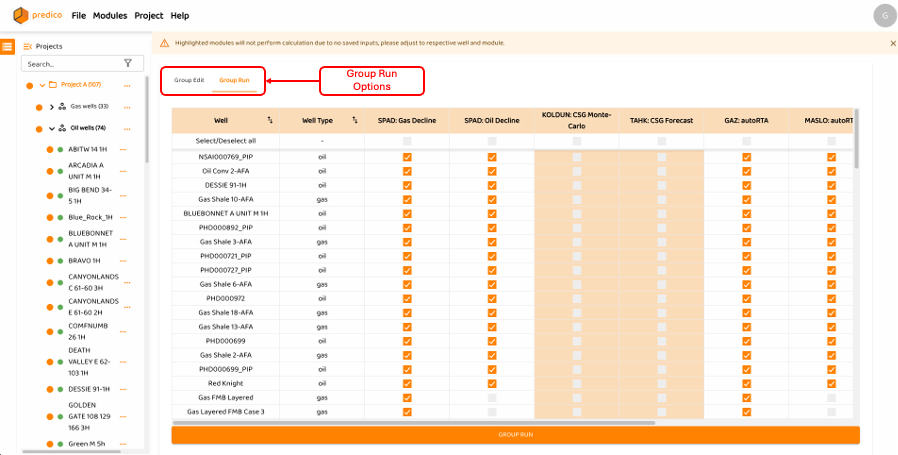
Please note that not all wells are eligible for all modules. Certain modules require specific data, and wells that do not meet these requirements cannot be processed. For further details on module-specific data requirements, refer to the following sections: https://predico.atlassian.net/wiki/x/BAAwE and https://predico.atlassian.net/wiki/x/AQAQAg.
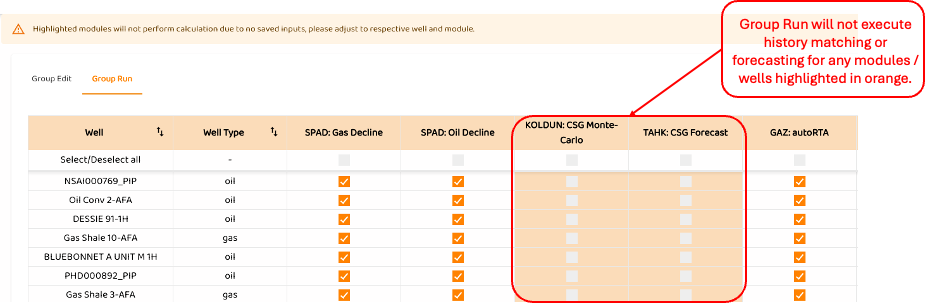
Be aware that modules without saved input parameters will not be executed. To assist the user, AFA highlights any modules that are ineligible for execution and displays a warning message prompting the user to review these modules before clicking the orange GROUP RUN button at the bottom of the interface.
Figures below show the warning message provided to warn the user and an example of highlighted modules/well that will not be executed, respectively.

STEP 3: Click “Group Run“
Once the user clicks the orange GROUP RUN button at the bottom of the interface., it will perform:
3a. All desired analyses for all wells selected
3b. History matches (if applicable)
3c. Forecasts if Set Forecast End Date has been done.
STEP 4: Reviewing Results
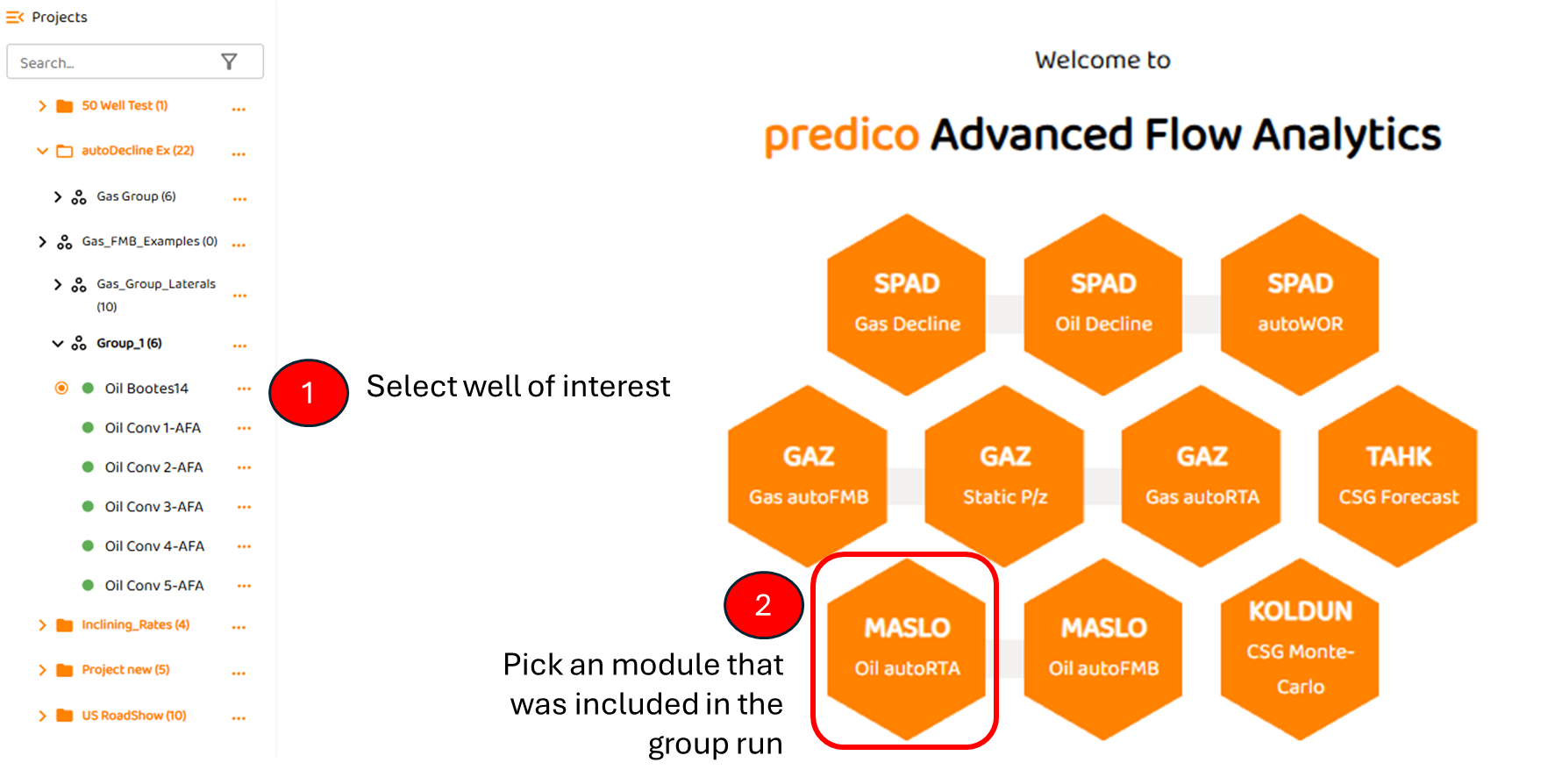
As shown below,
-
Click on well of interest (in the example below, Bootes14 - an oil well.
-
Click that module that has been included for this well in a group. In this example, the user has selected Maslo Oil RTA for Bootes14.
STEP 5: The Results!
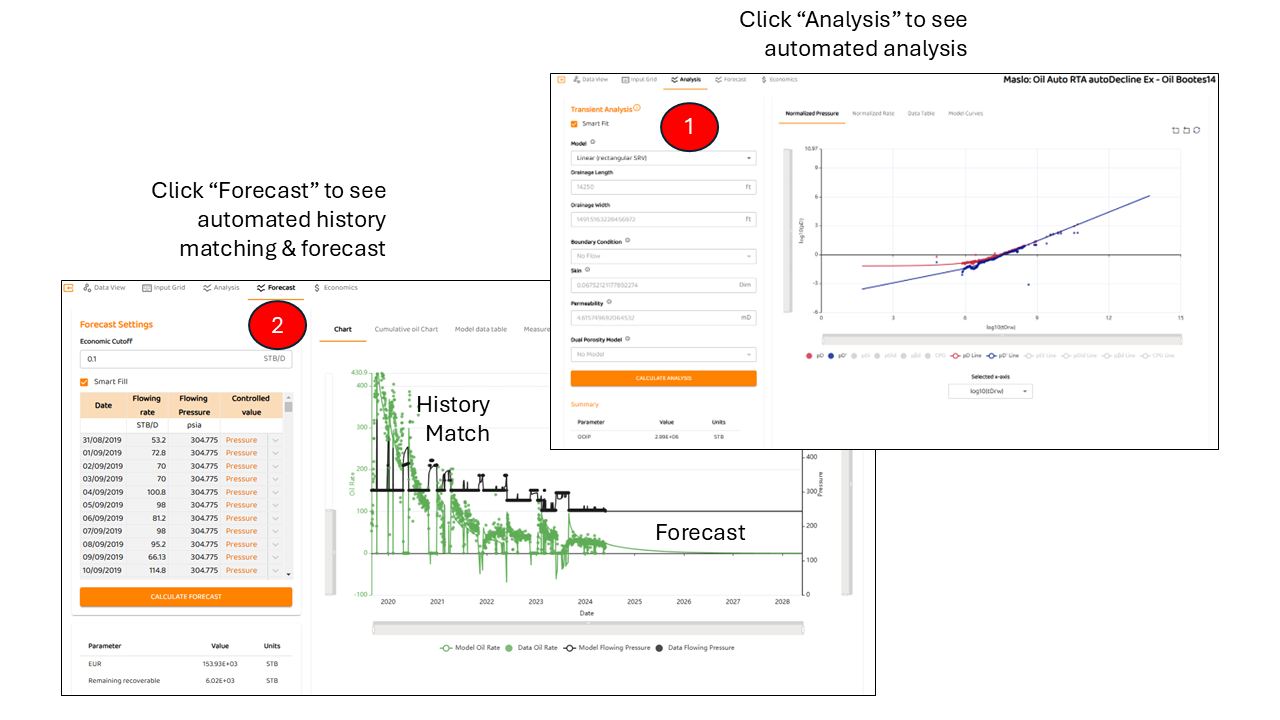
If the user went directly to either the Analysis or Forecast tab, they would see fully automated Type Analysis, History Matching, and Forecasts. In this example, the user had preselected a linear channel (aka Rectangular SRV model).